Live demo | Documentation | Support Bring your pages to life with scroll animations. AnimateGL animates headings, text, images, buttons, cards and whole sections as they scroll into view. Select a Gutenberg block or an Elementor widget, pick an entrance animation, and publish. No code, and no new pa
PricingFree downloadThe WordPress.org download is free. Pro versions, add-ons or external services may cost extra.
CompatibilityRequires WordPress 6.6 and PHP 7.4.
SourceWordPress plugins · Oct 27, 2026
01 / Source details
Aboutthistool.
Live demo | Documentation | Support
Bring your pages to life with scroll animations. AnimateGL animates headings, text, images, buttons, cards and whole sections as they scroll into view. Select a Gutenberg block or an Elementor widget, pick an entrance animation, and publish. No code, and no new page builder to learn.
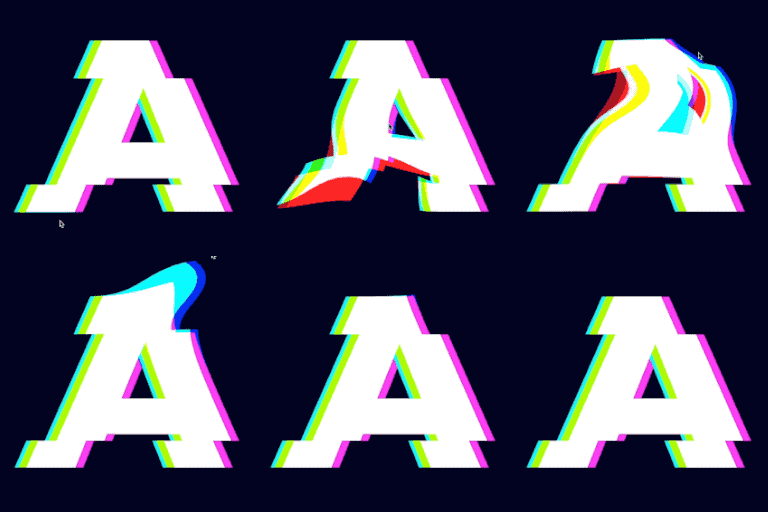
Most animation plugins stop at fade and slide. AnimateGL has those as fast CSS animations, and it adds WebGL animations that bend, flip, peel and stretch an element in 3D . CSS can’t do these effects. They make a hero heading, a product image or a call-to-action button stand out.
Why AnimateGL
Works where you already build. Animate any block in the Gutenberg block editor, including dynamic blocks and blocks from other plugins. In Elementor, animate any section, column, container or widget. In any other theme or page builder, add a CSS class.
Effects you won’t find in other plugins. 8 WebGL animations with 3D distortion, page peel and directional fade, next to 5 GPU-accelerated CSS animations.
65 ready-made presets. Each of the 13 animations plays centered or from the left, right, top or bottom. Every preset has a live preview in the admin.
Full control. Set the direction, distance, duration, delay and easing. Play an animation once or every time it enters the viewport, or tie its progress to the scrollbar.
Preview in the editor. Click Preview animation in the block editor to see the animation before you publish.
Fast. The core script is about 19 KB gzipped, has no dependencies and loads deferred. The WebGL renderer loads only on pages that use a WebGL animation.
SEO friendly and accessible. Content stays visible to search engines and to visitors without JavaScript. Visitors who prefer reduced motion see your content without animation.
Free, no sign-up. All 13 animations and 65 presets are in the free plugin.
How it works
01Install and activate AnimateGL.
02Select a block in the block editor, or an element in Elementor, and choose an entrance animation.
Hover and scroll effects (CSS, any element): Lift, Grow and Tilt while the mouse is over it, and Skew, which leans it with the scroll speed. AnimateGL Pro adds WebGL hover effects ( see them live ) and WebGL scroll effects ( see them live ).
Ideas for using them:
Fade in a hero heading, then slide in its button with a short delay
Stagger a row of cards or blog posts by giving each one a longer delay
Reveal images in a portfolio or gallery with a wipe or zoom
Peel or flip in a call-to-action banner
Bend or stretch a product image as it scrolls into view
Scroll animations (animate on scroll)
Entrance animations are scroll triggered. Each one plays when its element enters the viewport, by default once 70% of the element (or 200px of it) is visible.
Turn on Repeat to play the animation every time the element scrolls back into view. Turn on Lock to scrollbar to make the animation follow the scroll position instead of a fixed duration: as you scroll down, the element animates in until it reaches the middle of the viewport.
CSS animations
CSS entrance animations are GPU accelerated and animate opacity, transform and clip-path. Combine fade, zoom, slide or wipe with direction, distance, easing and delay to create elegant reveal animation effects for headings, text, buttons, images and whole sections. They work on any element, however complex.
WebGL animations
WebGL animations go beyond CSS. AnimateGL renders the element to an image with html2canvas, then animates it with custom GLSL shaders for 3D distortions, page peel and gradient (directional) fade effects. Use these motion effects, image effects and visual effects on simple elements like headings, buttons and images.
Gutenberg block animations
Add animations for blocks in the Gutenberg block editor, including dynamic blocks like Latest Posts. Select the block, open the AnimateGL panel in the block settings sidebar, and choose the animation type, direction, distance, duration, delay and easing. Click Preview animation to play it right in the block editor. Your blocks stay visible while you edit.
Elementor animations
Add an entrance animation to any Elementor section, column, container or widget. Open the element’s Advanced tab and choose the animation type, direction, distance, duration, delay and easing in the AnimateGL section.
CSS class animations for any page builder
Not using Gutenberg or Elementor? Add an animation’s CSS class to any element in Visual Composer, another page builder or your theme, for example agl agl-fadeCSSUp or agl agl-bendLeft . The AnimateGL > Entrance Presets admin page lists every preset animation with a live preview and a CSS class you can copy.
Animation Editor
Design your own entrance animation in the visual Animation Editor on the AnimateGL admin page, then apply it to any element with the agl class. You can set:
Fade, with directional fade and threshold
Translate along the x, y and z axes
Rotation around the x, y and z axes
Corners distortion
Duration, delay and easing
You can set the same properties with CSS classes.
More animations
Get more entrance animations with add-ons:
Entrance Pack : Circle, Square and Line CSS animations
Fade Pack : more fade animations
Source code
Every minified script ships with its readable source in the plugin: js/lib/animategl.js (animation runtime), js/lib/animategl.webgl.js (its WebGL part, loaded only for WebGL animations), js/lib/animategl.editor.js (Animation Editor), js/lib/html2canvas-pro.js ( html2canvas-pro with two small fixes, marked in the file), and src/index.js (block editor controls, built with @wordpress/scripts).
Help us improve
If you run into a problem or want a new feature, please open a support topic . If AnimateGL helps your site, a review helps other people find it.
See it in action
Screenshots & previews.
Elementor: choose an entrance animation in the AnimateGL section of the Advanced tab.Block editor: set the animation, direction, duration and delay in the block's AnimateGL panel.Cards animating in on the front end as the page scrolls.Block editor: add a Fade Left animation to an image block.AnimateGL – WebGL & CSS Scroll and Hover Animations for Gutenberg and Elementor screenshot 5
02 / Source details
Gettingstarted.
01In your WordPress admin, go to Plugins > Add New Plugin, search for “AnimateGL”, then install and activate it.
02In the block editor, select a block, open the AnimateGL panel in the block settings sidebar and choose an entrance animation.
03In Elementor, select an element, open the Advanced tab and choose an animation in the AnimateGL section.
04With any other page builder, add a preset CSS class such as agl agl-fadeCSSUp to the element. AnimateGL > Entrance Presets lists them all.
03 / Source details
Frequently asked questions.
How do I add scroll animations to a Gutenberg block?
Select the block and open the AnimateGL panel in the block settings sidebar, then choose an entrance animation. You can also add a preset CSS class in Advanced > Additional CSS class(es).
How do I add animations in Elementor?
Select the section, column, container or widget, open the Advanced tab and choose the animation in the AnimateGL section. You can also add a preset CSS class in Advanced > Layout > CSS Classes.
Is AnimateGL free?
Yes. All 13 animations, the 65 presets, the Animation Editor and the Gutenberg and Elementor controls are free. The Entrance Pack and Fade Pack add-ons are optional and add more animations.
Does it work with blocks from other plugins?
Yes. The AnimateGL panel appears for every block, including blocks from block libraries and dynamic blocks like Latest Posts.
Where is the list of CSS classes for entrance animations?
Go to AnimateGL > Entrance Presets in your WordPress admin. Every preset has a live preview and a CSS class you can copy.
Can I preview an animation in the block editor?
Yes. Click Preview animation in the AnimateGL panel to play the selected block’s animation. Blocks are never hidden while you edit.
How do I stagger animations, one element after another?
Give each element the same animation and a longer delay than the one before it, for example 0, 150 and 300 ms.
Can the animation play every time the element scrolls into view?
Yes. Turn on Repeat. By default an animation plays once, the first time the element enters the viewport.
What is Lock to scrollbar?
With Lock to scrollbar on, the animation follows the scroll position instead of playing for a fixed duration. The element finishes animating in when it reaches the middle of the viewport.
Does AnimateGL work with other page builders and themes?
Yes. You can add animations to any element with a CSS class, so they work with any theme or page builder.
How is AnimateGL different from Animate On Scroll (AOS) or Animate.css?
They are JavaScript and CSS libraries you add to a theme by hand. AnimateGL is a WordPress plugin: you choose animations in the block editor or Elementor, without code. It also has WebGL animations, such as bend, flip and peel, that CSS-only libraries can’t do.
Will animations slow down my website?
CSS animations are GPU accelerated, and the core animation script is about 19 KB gzipped, has no dependencies and loads deferred. The WebGL renderer loads only on pages that use a WebGL animation.
Is my content visible to search engines and without JavaScript?
Yes. AnimateGL hides an element only while its animation is waiting to play. Without JavaScript, or if the animation script can’t load, the content is shown.
What about visitors who prefer reduced motion?
When reduced motion is turned on in the visitor’s system settings, AnimateGL shows the content without animating it.
What are the limitations of WebGL animations?
WebGL animations work best on simple elements like headings, buttons and images. For complex elements like whole sections, use the CSS animations.
Website LLMs.txt and LLMs-Full.txt Generator is an LLMs.txt generator and llms-full.txt generator for WordPress. It helps site owners generate, manage, preview, validate, and serve AI discovery files from published public content. Use it to create structured /llms.txt and optional /llms-full.txt end
EngageDock AI is a customizable floating contact widget for WordPress websites that want more leads and faster visitor communication. It helps small businesses turn website traffic into calls, texts, emails, and callback requests from one clean contact panel. Key Features: Click-to-Call – One tap ca
Altify AI is an auto ALT text and AI ALT text plugin for WordPress images. It helps generate descriptive image ALT text for accessibility and image SEO. Use bulk image ALT text tools for your Media Library, generate featured image ALT text automatically, and scale WooCommerce image ALT updates with
The Accepted Payment Methods plugin is a straightforward, lightweight solution that enhances your website by displaying visually appealing icons of the payment methods you accept. This plugin is ideal for a variety of websites, including e-commerce platforms, service-oriented websites, and informati