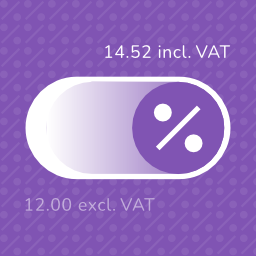
Tax Switch for WooCommerce enhances your WooCommerce store by allowing users to toggle between displaying prices including or excluding tax. This plugin adds a customizable switch component and provides a flexible way to display both price versions. See Tax Switch for WooCommerce in action: Try the
PricingFree downloadThe WordPress.org download is free. Pro versions, add-ons or external services may cost extra.
CompatibilityRequires WordPress 6.1 and PHP 8.0.
SourceWordPress plugins · Nov 7, 2026
01 / Source details
Aboutthistool.
Tax Switch for WooCommerce enhances your WooCommerce store by allowing users to toggle between displaying prices including or excluding tax. This plugin adds a customizable switch component and provides a flexible way to display both price versions.
See Tax Switch for WooCommerce in action: Try the live demo →
Key features
Display customizable switches where you want
Gutenberg block support
Shortcode for easy integration (including shortcode generator)
Flexible display options for prices with and without tax
Remembers the user’s preference for future visits
Choose between a toggle switch or buttons
For more information about this plugin, please visit the plugin page .
Requirements
WooCommerce plugin installed and activated
WooCommerce tax calculations enabled and configured
Configuration
Configure the plugin settings below for proper functionality.
WooCommerce settings
Ensure these WooCommerce settings are configured first:
01Configure tax calculations Go to: WooCommerce > Settings > General
02Verify your shop address is complete
03Enable “Enable tax rates and calculations”
04Set “Default customer location” to “Shop base address”
05Set up tax rates Go to: WooCommerce > Settings > Tax > Standard Rates
06Add your regional tax rates
07Recommended: tax calculation method Go to: WooCommerce > Settings > Tax
08Set “Calculate tax based on” to “Shop base address” (This provides instant tax calculation. Other methods require customers to enter their address first.)
10Under Product Data > Tax , set status to “Taxable”
Plugin settings
Configure these plugin-specific settings:
11Main settings Go to: WooCommerce > Settings > Tax Switch
12Set your preferred text values
13Optional: Restrict display locations
14Optional: Generate a shortcode via WooCommerce > Settings > Tax Switch > Shortcode
Usage
After installation and configuration, you can add the tax switch to your pages in two ways:
15Use the Gutenberg block “Tax Switch for WooCommerce” in your page or post editor.
16Use the shortcode [wdevs_tax_switch] anywhere in your content.
Shortcode Usage
Switch/buttons
Basic usage: [wdevs_tax_switch]
Displays a switch to toggle displaying prices including or excluding tax.
The shortcode accepts several attributes to customize its appearance and behavior:
class-name : Adds custom CSS classes to the switch. Default: is-style-default
Options: is-style-default, is-style-inline, is-style-flat-pill, or custom classes
switch-type : Determines the style of the toggle.
Default: switch
Options: switch , buttons
switch-color : Sets the color of the switch handle. switch-color-checked : Sets the color of the switch when it’s in the “on” position. switch-background-color : Sets the background color of the switch. switch-text-color : Sets the text color of the switch labels. switch-background-color-checked : Sets the background color of the switch when it’s in the “on” position. switch-label-incl : Sets the text for the “including tax” label.
Default: Uses the text set in the plugin settings or “Incl. VAT” if not set.
switch-label-excl : Sets the text for the “excluding tax” label.
Default: Uses the text set in the plugin settings or “Excl. VAT” if not set.
switch-aria-label : Sets the aria label of the switch.
Default: Uses the text set in the plugin settings or “Switch between prices including and excluding tax” if not set.
Example with custom attributes:
[wdevs_tax_switch class-name="is-style-inline" switch-type="switch" switch-color="#ffffff" switch-color-checked="#000000" switch-background-color="#000000" switch-background-color-checked="#4CAF50" switch-text-color="#FF0000" switch-label-incl="Incl. VAT" switch-label-excl="Excl. VAT" switch-aria-label="Switch between prices including and excluding tax"]
Label
Basic usage: [wdevs_tax_switch_label]
Displays text indicating the currently selected tax setting. The text updates automatically when the tax switch is toggled.
The shortcode accepts several attributes to customize its appearance and behavior:
class-name : Adds custom CSS classes to the label. Default: is-style-default
Options: is-style-default or custom classes
label-text-incl : Sets the text to display when “including tax” is selected.
Default: Uses the text set in the plugin settings or “Incl. VAT” if not set.
label-text-excl : Sets the text to display when “excluding tax” is selected.
Default: Uses the text set in the plugin settings or “Excl. VAT” if not set.
label-text-color : Sets the “excluding tax” text color. label-text-color-checked : Sets the “including tax” text color.
Example with custom attributes:
[wdevs_tax_switch_label class-name="tax-indicator" label-text-incl="Prices include tax" label-text-excl="Prices exclude tax" label-text-color="#FF0000" label-text-color-checked="#4CAF50"]
PHP implementation
You can use these shortcodes with PHP with the do_shortcode() function:
Tax Switch provides a JavaScript API for custom integrations, such as buttons, preference popups, or other flows where visitors choose whether they want to see prices including or excluding tax.
API methods: * getDisplay() : returns the current display, either 'incl' or 'excl' . * setDisplay( display, options ) : changes the display to 'incl' or 'excl' . * hasSavedChoice() : returns whether the visitor already has a saved switch choice. * refresh() : reapplies the current display. * toggle( options ) : toggles between inclusive and exclusive tax display.
The switch fires a JavaScript event when the tax display changes. You can listen for this event to execute custom code when a user switches between inclusive and exclusive tax display. This is useful for when you need to perform additional actions based on the tax display state.
Detail properties: * isSwitched : boolean – the raw switch state. * displayIncludingTax : boolean – whether prices now display including tax.
If you are loading the switch dynamically (via AJAX), dispatch this event after rendering to initialize the component:
document.dispatchEvent( new CustomEvent( 'wdevs-tax-switch-appeared' ) );
WPML
To translate the option texts via WPML:
17Save your options first in: WooCommerce -> Settings -> Tax Switch
18Then translate the texts in: WPML -> String Translations and search for your option values in the domain ‘tax-switch-for-woocommerce’
Compatibility
This plugin integrates with WooCommerce’s standard filters and actions for price display and calculation. While most plugins and themes work out of the box, some third-party code use custom price building methods that require specific compatibility integrations.
The following themes have been tested and confirmed compatible:
GeneratePress
Blocksy
Thrive
Flatsome
Kapee
Entr
Woodmart
Hello Elementor
The following plugins have been tested and confirmed compatible:
WooCommerce Product Table Lite (+ PRO)
Tiered Pricing Table for WooCommerce (+ Premium)
Measurement Price Calculator for WooCommerce
Discount Rules for WooCommerce
YITH WooCommerce Product Add-Ons (+ & Extra Options Premium)
JetEngine Listing Grid (Elementor)
Product Add-Ons for WooCommerce
B2BKing – Ultimate WooCommerce Wholesale and B2B Solution (+ Premium)
Advanced Product Fields Pro/Extended for WooCommerce
WooCommerce Quantity Discounts, Rules & Swatches
FacetWP
Variation Swatches for WooCommerce (+ PRO)
Variation Price Display Range for WooCommerce (+ PRO)
WooCommerce Product Add-Ons Ultimate
Advanced Woo Search (+ PRO)
B2B Market
FiboFilters
Extra Product Options & Add-Ons for WooCommerce
FiboSearch – Ajax Search for WooCommerce (+ Pro)
YayMail – WooCommerce Email Customizer
PDF Invoices & Packing Slips for WooCommerce
WooCommerce Product Bundles
LiteSpeed Cache
Elementor Pro
YITH WooCommerce Role Based Prices
WooCommerce Dynamic Pricing and Discount Rules
Price Based on Country for WooCommerce
WP Grid Builder
If you encounter any compatibility issues with other plugins or themes, please let us know. Your feedback helps us improve the plugin and extend compatibility to more third-party solutions.
Incompatibility
After multiple attempts to create compatibility functions, reaching out to the plugin developers several times, and still finding no viable solution, the following plugins remain incompatible:
Unlimited Elements for Elementor (+ Pro): AJAX pagination and filtering issues
Barn2: WooCommerce Product Options
Additional Information
This plugin is fully open source. You can find the source code on GitHub
For more information and other WordPress plugins, visit Wijnberg Developments .
See it in action
A closer look.
This GIF demonstrates the main functionality of the plugin.
02 / Source details
Gettingstarted.
01Install the plugin through the WordPress plugins screen directly or Upload the plugin files to the /wp-content/plugins/tax-switch-for-woocommerce directory.
02Activate the plugin through the ‘Plugins’ screen in WordPress.
03Configure your settings as described in the ‘Configuration’ section.
03 / Source details
Frequently asked questions.
Are there any known compatibility issues?
Some WooCommerce Blocks are not fully compatible with this plugin as they do not use standard WooCommerce filters for price display. This is a known limitation of WooCommerce Blocks and not specific to this plugin. You can fix this by using WooCommerce shortcodes instead of the WooCommerce Blocks.
Why do prices stay the same after switching?
Sometimes prices may not appear to change when toggled. This is often related to WooCommerce tax settings. If possible, select ‘Shop based’ in WooCommerce → Settings → Tax → “Calculate tax based on”. Otherwise, WooCommerce requires a billing/shipping address to calculate taxes, which is typically only available after login or during checkout.
Why don’t prices update in the cart/checkout when switching?
The plugin is designed to keep prices consistent in the cart and checkout process. There are two main reasons for this:
01Customer clarity : This ensures visitors always see the exact final amount they’ll pay, without unexpected changes during checkout.
02Technical simplicity : While dynamic price switching could be implemented, it would require compatibility with various third-party cart/checkout plugins. The focus is, at the moment, on maintaining a lightweight and reliable solution rather than this specific feature.
FinderPress Media Auditor helps site administrators scan for broken images, missing Media Library files, unreachable media URLs, and other media issues across WordPress content. Use it to audit images, video, audio, PDFs, featured images, and attachment files without sending scan data to an external
The Accepted Payment Methods plugin is a straightforward, lightweight solution that enhances your website by displaying visually appealing icons of the payment methods you accept. This plugin is ideal for a variety of websites, including e-commerce platforms, service-oriented websites, and informati