Graphviz is a powerful tool for visualizing network and tree structures that connect objects. This WordPress plugin provides a shortcode mechanism to create Graphviz graphics within blogs, including image map generation and most other Graphviz features. How to use TFO Graphviz The shortcode syntax i
PricingFree downloadThe WordPress.org download is free. Pro versions, add-ons or external services may cost extra.
CompatibilityRequires WordPress 4.2.0.
SourceWordPress plugins · Oct 18, 2026
01 / Source details
About this tool.
Graphviz is a powerful tool for visualizing network and tree structures that connect objects.
This WordPress plugin provides a shortcode mechanism to create Graphviz graphics within blogs, including image map generation and most other Graphviz features.
How to use TFO Graphviz
The shortcode syntax is:
[graphviz <options>] <DOT code> [/graphviz]
Where <options> is anything from this list. All are entirely optional:
class=" <css_class> " Adds an extra CSS class name (or names) to the img tag of the rendered graph. This is in addition to the graphviz class that is already applied.
emitjs="yes|no" Override the global setting that controls whether JavaScript is emitted as necessary. Typically this JavaScript is only produced when rendering SVG output and is intended to ensure SVG images work on most browsers. However this can sometimes be undesirable and thus this option gives some control over this.
height=" <image_height> " Adds a height attribute to the image tags to enable control of the image rendering. This is useful for making sure the graphic fits into a certain space and works well for SVG rendered graphs.
href="self| <URL> " Encompasses the generated image with a link either to the image itself (with the self value) or to the provided URL. If the option is empty (for example, href="" ) then no link is generated. This is the default.
id=" <id> " Provides the identifier used to link the generated image to an image map. If you use the simple option then it also provides the name of the generated DOT graph container (since Graphviz uses this to generate the image map). If not given then an identifier is generated with the form tfo_graphviz_N where N is an integer that starts at one when the plugin is loaded and is incremented with use.
imap="yes|no" Graphviz can generate image maps using any URL’s given in the DOT code so that clicking on objects in the resultant image will direct a web browser to a new page. The effect of this option is to both instruct Graphviz to generate a client-side image map and to also insert that map into the generated HTML. It will use the id value as the name of the map (see the id option for details). imap defaults to no . Take note that the id value specified in the shortcode tag must match the name of the graph inside your DOT; the HTML for the image map is generated by Graphviz using the name of the graph as the map id and name. This plugin uses the id specified in the shortcode tag to link the image to the map and thus these values need to match. For example, note that mymap is both the id and the graph name: [graphviz imap="yes" title="This is my map" id="mymap"] digraph mymap { input[shape="box", style="rounded", label="My label", URL="/myurl"]; } [/graphviz] If you do not give the graph any name at all the results are undefined. Some versions of Graphviz use the string %3 as the identifier in the map but this may not be universally true.
lang="<dot|neato|twopi|circo|fdp>" Specifies the particular Graphviz interpreter to use. The options are dot , neato , twopi , circo and fdp . The default is dot .
output="<png|gif|jpg|svg>" Indicates the desired image format. Defaults to png .
simple="yes|no" The simple option provides a very basic DOT wrapper around your code such that the following is possible: [graphviz simple="yes"] a -> b -> c; [/graphviz] The generated code would look like: digraph tfo_graphviz_1 { a -> b -> c; } See the id option for a description of how the name of the digraph is created. simple defaults to no .
title=" <title> " Indicates the title of the image. This is used in the alt and title attributes of the image reference. This defaults to an empty string. Note that image maps may indicate a title string which will appear in tool-tips.
width=" <image_width> " Adds a width attribute to the image tags to enable control of the image rendering. This is useful for making sure the graphic fits into a certain space and works well for SVG rendered graphs.
method=" <Graphviz|Graphlib_Dot|PHP> `” Overrides the configured output generation method to use the one indicated. This is useful when the mechanism normally in use does not support a specific feature, or when developing new methods. Note that since this does not have the same tests that the settings page has it may fail in mysterious ways without letting you know that it did. In particular, note that the Graphlib_Dot method is very experimental at the moment.
See it in action
Screenshots & previews.
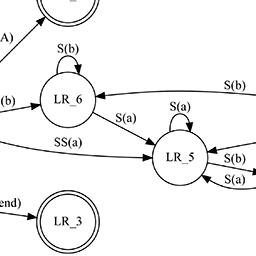
Virtual Disk StackState machineExample page
02 / Source details
Getting started.
Installation is simple. Either install from directly within WordPress or:
01Download and unzip the plugin to the /wp-content/plugins/tfo-graphviz directory within your WordPress installation.
02Make the directory /wp-content/tfo-graphviz and make it writable by the web server – this is where generated images and image maps go.
03Activate the plugin through the ‘Plugins’ menu in WordPress.
04Choose a generation method on the plugin settings page.
05Use the [graphviz] shortcode to generate graphs.
You need access to a Graphviz renderer:
06By using a local installation of Graphviz and the dot binary.
07By using a local installation and PHP bindings to the library.
See the FAQ for more details on these options and http://www.graphviz.org/Download.php for details on installing Graphviz on your web server.
03 / Source details
Frequently asked questions.
What is Graphviz?
Graphviz is a way of generating visualisations of [structural relationships between objects. Almost any kind of diagram where [something connects to something else can be drawn and automatically laid [out using the language DOT.
How do I use this plugin?
Use the [graphviz] shortcode. Details are in the Description section.
How to I write DOT?
The online documentation for Graphviz is terse and not especially helpful, in particular the DOT language page is only helpful if you happen to be able to read an approximation of BNF .
There are however several other introductions to Graphviz and DOT, including an excerpt on the O’Reilly LinuxDevCenter.com site . Another approach would be to look at the examples in the Graphviz gallery .
Users should note that DOT syntax varies between Graphviz processors and also between versions of those processors. If in doubt, find an example and experiment with it.
Can I manipulate the rendered graph using CSS in my WordPress theme?
The img elements are tagged with ‘ class="graphviz" ‘. Additionally, you can add class="myclass" to the shortcode to add additional classes to the img tag.
How can I make my graph have a transparent background?
Add the tag bgcolor="transparent" to the root graph node. For example placing graph [bgcolor="transparent"] near the top like this:
Nothing is being rendered, maybe my DOT is broken?
If you’re using a local Graphviz renderer then errors from Graphviz should be presented where you expect the graph to appear. Note that because of how WordPress submits content to plugins the line numbering will not always match what you expect.
The error message when using the dot binary will contain the command line used as well as a line-numbered copy of the DOT that was used.
I’m getting strange errors that make no sense, what gives?
WordPress encodes HTML entities inside the shortcode block which this plugin attempts to demangle.
Unfortunately WordPress can also try to do smart character replacement, such as “…” into a UNICODE ellipsis character. The Graphviz plugin contains a mapping of many of these back to their ASCII equivalents, but it may not be complete. Let us know if you think this is breaking your DOT. It’s also possible that non-ASCII7 characters do strange things too.
Adding define("TFO_GV_DEBUG", true) to wp_config.php will cause the plugin to create some diagnostic files in your system tmp directory. The file pre-N.dot is the contents of the DOT as given to the plugin by WordPress, post-N.dot is the results of the plugin attempting to demangle it. The N is a number that is incremented for each shortcode section interpreted. The plugin does not clean these files up.
How do I install the Graphviz program (not this plugin) locally?
This depends on your local operating system. You will find some details at http://www.graphviz.org/Download.php but many systems also have it in their own package management system, for example this is package graphviz on Debian, Ubuntu and Fedora systems.
There are currently two ways to use a local installation of Graphviz. The settings page will only show options for those methods that are actually available and configured correctly.
01Using a local Graphviz installation and the dot binary. You configure the path to this binary on the admin settings page of the plugin.
02Using PHP bindings to the Graphviz library. This requires that gv.php is available.
I’ve installed the PHP bindings but Graphviz doesn’t work!
This requires that gv.php is available and that the associated module is either already loaded or loadable with dl() .
The use of dl() is often disabled in php.ini (since it can have security implications) and doesn’t work on multithreaded webservers; it’s entirely disabled in modern Apache2 httpd modules.
For these cases you must ensure the library is loaded with an entry like extension=gv.so or similar somewhere in the PHP configuration.
Website LLMs.txt and LLMs-Full.txt Generator is an LLMs.txt generator and llms-full.txt generator for WordPress. It helps site owners generate, manage, preview, validate, and serve AI discovery files from published public content. Use it to create structured /llms.txt and optional /llms-full.txt end
EngageDock AI is a customizable floating contact widget for WordPress websites that want more leads and faster visitor communication. It helps small businesses turn website traffic into calls, texts, emails, and callback requests from one clean contact panel. Key Features: Click-to-Call – One tap ca
Altify AI is an auto ALT text and AI ALT text plugin for WordPress images. It helps generate descriptive image ALT text for accessibility and image SEO. Use bulk image ALT text tools for your Media Library, generate featured image ALT text automatically, and scale WooCommerce image ALT updates with
The Accepted Payment Methods plugin is a straightforward, lightweight solution that enhances your website by displaying visually appealing icons of the payment methods you accept. This plugin is ideal for a variety of websites, including e-commerce platforms, service-oriented websites, and informati