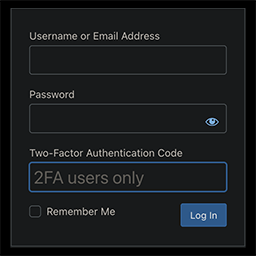
💬 Ask Question | 📧 Email Me This is probably the 2FA plugin you’re looking for. Secure, private, and lightweight . Integrates into WordPress like a native feature. Proactive vs Reactive Security Prevents attacks instead of reacting to them. The best breach is the one that never happens. How it Wor
PricingFree downloadThe WordPress.org download is free. Pro versions, add-ons or external services may cost extra.
CompatibilityRequires WordPress 6.0 and PHP 8.0.
SourceWordPress plugins · Oct 20, 2026
01 / Source details
About this tool.
💬 Ask Question | 📧 Email Me
This is probably the 2FA plugin you’re looking for.
Secure, private, and lightweight .
Integrates into WordPress like a native feature.
Proactive vs Reactive Security
Prevents attacks instead of reacting to them. The best breach is the one that never happens.
How it Works
01Install and activate the plugin
02Go to Users > Profile > Two-Factor Authentication (near the bottom)
03Check the box next to “Enable 2FA” and click “Update Profile”
042FA and Backup Codes are now enabled
05Scan the QR code or manually enter the secret key into your auth app of choice (and be sure to rename the generic site name “2FA” to something more useful)
06Once successful login with a 2FA code from your app has been confirmed, you should disable Backup Codes
07Brute force protection is enabled by default and can be managed site-wide by admins in profile settings
Backup Codes have been rethought from the usual method you might be used to. Read more about that in the FAQ below.
Need Support?
Ask for help here .
02 / Source details
Getting started.
Automatic
01From your WordPress Admin, navigate to: Plugins > Add New
Try not to panic; you’re not permanently locked out and nothing has been lost. You’ll simply need to disable the Tiny 2FA plugin to regain access.
The simplest way to do that is to access your /wp-content/plugins folder via FTP and rename the /tiny-2fa folder to anything else. Once you’re back in your admin, you can restore the folder name and proceed to adjust your 2FA settings.
I’m positive I entered my username, password, and 2FA code correctly, but I still can’t log in!
There are a few quirks to check for that could disrupt the general 2FA process, which aren’t exclusive to Tiny 2FA:
01The code you’re trying to enter may have expired. Even if you get a fresh code, you may need to reload the login page again first before trying the new code.
02You may need to clear the browser cache and try again.
03If you’re using Cloudflare, you’ll need to either restore visitor IPs or disable brute force protection.
04If you’re using a caching plugin, make sure it doesn’t cache login pages or otherwise exclude your login page in its settings.
05In your authenticator app, you may need to find and use a setting called something like “Sync Clock with Google.”
What 2FA methods are available?
Only TOTP at this time. This is the most common 2FA method, the one you’re probably most familiar with already. It’s more secure than 2FA via SMS or email, but not as secure as a hardware key (overkill for most people), which is probably the only other option I’d consider adding.
What apps are compatible?
There are many mobile, desktop, and browser apps that support TOTP, including: Google Authenticator, Microsoft Authenticator, Proton Authenticator, Ente Auth, Authy, Bitwarden, LastPass, and 1Password.
How do I generate a new secret key?
Simply regenerate (↻) in your profile settings to get a new key.
Can I store the site encryption key in wp-config.php?
Yes. For extra security, you can define your encryption key in wp-config.php:
You can find your current key in /wp-content/tiny-2fa-backup.php . This ensures your key survives database issues if somehow it’s lost.
How’s the security?
Other than storing secret keys in an encrypted format (apparently most sites just save them in plaintext), it’s a pretty standard implementation (but having any 2FA in place is infinitely more secure than no 2FA at all).
How’s the privacy?
As it turns out, generating QR codes is not a trivial matter. I explored generating them locally, but it added a lot of bloat to the plugin. So, I’ve opted to use an external service instead.
I’m using QuickChart (rather than Google, a popular choice) to generate QR codes, and for extra privacy, proxying the requests through Cloudflare .
QuickChart will only ever know the secret key, but not the site name, username, or IP address it belongs to. Cloudflare will know the server IP the request is coming from, but still not the name of the website or user.
How do Backup Codes work differently with your plugin?
The way I’ve envisioned Backup Codes is simple: immediately upon enabling 2FA, Backup Codes will be on by default. This means that you’ll receive codes by email until you’re certain you’ve set up an authentication app correctly, and then you should disable them.
Why do Backup Codes work differently with your plugin?
I don’t like the current implementation of the common Backup Codes feature that comes with most 2FAs. I think it creates a burden for the user to back them up, which if they’re capable of doing, they’re also capable of backing up their secret key in the first place without adding an unnecessary chore and new vulnerability while they’re at it.
I think I’ve been able to improve upon the concept of Backup Codes, at least in the WordPress environment where most users are going to be the admin of their own website anyway. The entire point of Backup Codes in the first place is to offer a second chance to avoid being locked out of your account in case you lost your secret key. But for most WordPress websites, and probably many websites in general these days, the added vulnerability doesn’t seem to match the intended usefulness.
I’m open to being wrong about this. If you feel my thinking is flawed or you have any other suggestion for improving the security of Tiny 2FA, please let me know.
Website LLMs.txt and LLMs-Full.txt Generator is an LLMs.txt generator and llms-full.txt generator for WordPress. It helps site owners generate, manage, preview, validate, and serve AI discovery files from published public content. Use it to create structured /llms.txt and optional /llms-full.txt end
EngageDock AI is a customizable floating contact widget for WordPress websites that want more leads and faster visitor communication. It helps small businesses turn website traffic into calls, texts, emails, and callback requests from one clean contact panel. Key Features: Click-to-Call – One tap ca
Altify AI is an auto ALT text and AI ALT text plugin for WordPress images. It helps generate descriptive image ALT text for accessibility and image SEO. Use bulk image ALT text tools for your Media Library, generate featured image ALT text automatically, and scale WooCommerce image ALT updates with
The Accepted Payment Methods plugin is a straightforward, lightweight solution that enhances your website by displaying visually appealing icons of the payment methods you accept. This plugin is ideal for a variety of websites, including e-commerce platforms, service-oriented websites, and informati