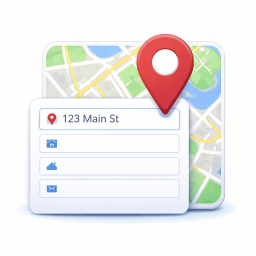
Google Map Field for Contact Form 7 is the most complete solution for adding a Google Places address autocomplete field to your Contact Form 7 forms. Users type a few characters, select from live suggestions, and an interactive Google Map appears instantly — no page reload needed. The draggable mark
PricingFree downloadThe WordPress.org download is free. Pro versions, add-ons or external services may cost extra.
CompatibilityRequires WordPress 5.5 and PHP 7.4.
SourceWordPress plugins · Oct 25, 2026
01 / Source details
Aboutthistool.
Google Map Field for Contact Form 7 is the most complete solution for adding a Google Places address autocomplete field to your Contact Form 7 forms. Users type a few characters, select from live suggestions, and an interactive Google Map appears instantly — no page reload needed.
The draggable marker lets users fine-tune the exact pin position. When dragged, the address and coordinates update automatically via reverse geocoding — so what gets submitted is always accurate.
✨ Key Features
Google Places Autocomplete — real-time address suggestions powered by the Google Places API (new PlaceAutocompleteElement)
Always-visible interactive map — map renders on page load using your configured default centre; no address selection required
Draggable marker — users drag the pin to the exact location; address and lat/lng fields update automatically via reverse geocoding
Responsive map heights — set separate pixel heights for desktop (> 768 px) and mobile (≤ 768 px) from the admin
Default map centre — configure a default latitude and longitude so the map opens on the right region for your audience
Address component sub-fields — optionally show separate inputs for Street Number, City, State, Postcode, and Country; each auto-populated on place selection
Country filter — restrict autocomplete suggestions to one or more countries using ISO 3166-1 alpha-2 codes (e.g. in , us , gb )
Place type filter — limit suggestions to specific place types such as airport , restaurant , or art_gallery
Mail-tag support — use [fieldname-locality] , [fieldname-state] , [fieldname-postcode] , and [fieldname-country] mail tags in CF7 email templates
Lat/Lng hidden fields — latitude and longitude are captured as hidden fields for backend processing or CRM integrations
Elementor popup compatible — autocomplete and map re-initialise correctly when used inside Elementor popups
Elegant form field design — modern, accessible frontend styling with focus rings, smooth transitions, and validation error states
Translation ready — all field labels are customisable from the settings page; compatible with WPML and Polylang
🗺️ How It Works
01Install and activate the plugin (Contact Form 7 must be active)
02Go to Contact → Google Place API and enter your Google Places API key
03In any CF7 form editor, use the new Field Autocomplete tag to insert a [googlemapfield] tag
04Configure map height, default centre, and address sub-fields from the settings page
05The map appears automatically on your form — users pick an address and the marker updates in real time
🔑 Google API Key Setup
This plugin requires a Google Cloud API key with the following APIs enabled:
Maps JavaScript API
Places API (New)
Full setup guide →
📬 Mail Tag Reference
After adding a [googlemapfield your-location] tag to your form, use these mail tags in your CF7 email template:
Mail Tag Returns
[your-location] Full formatted address
[your-location-locality] City / Locality
[your-location-state] State / Province
[your-location-postcode] Postal code
[your-location-country] Country
💼 Use Cases
Delivery forms — capture precise delivery addresses with postcode and city auto-filled
Event registration — let attendees specify their nearest location or venue
Job applications — collect applicant location with lat/lng for distance filtering
Real estate enquiries — capture property address with map confirmation
Service booking — validate service area coverage before form submission
Travel & hospitality — autocomplete hotel, airport, or attraction names
Privacy Policy & External Services
This plugin connects to Google’s servers to load the Maps JavaScript API and retrieve place suggestions and geocoding results. By using this plugin you agree to:
Google Maps Platform Terms of Service
Google Privacy Policy
No personal data is collected or stored by this plugin itself. Address data entered by users is sent directly to Google’s API from the visitor’s browser.
See it in action
Screenshots & previews.
Frontend form field with Google Places autocomplete and interactive mapDraggable marker — drag to fine-tune location, address updates automaticallyAdmin settings page — API key, map height, default centre, address sub-fields
02 / Source details
Gettingstarted.
Automatic Installation
01Log in to your WordPress dashboard
02Go to Plugins → Add New
03Search for Map Field for Contact Form 7
04Click Install Now , then Activate
Manual Installation
05Download the plugin ZIP file
06Go to Plugins → Add New → Upload Plugin
07Upload the ZIP file and click Install Now
08Click Activate Plugin
After Activation
09Make sure Contact Form 7 is installed and active
10Go to Contact → Google Place API
11Enter your Google Places API key ( how to get one )
12Configure map height and default map centre
13Open any CF7 form and add the Field Autocomplete tag via the tag generator
03 / Source details
Frequently asked questions.
Does this plugin require Contact Form 7?
Yes. Contact Form 7 must be installed and active. The plugin will not load without it.
Which Google APIs do I need to enable?
Enable Maps JavaScript API and Places API (New) in your Google Cloud Console. Both must be active on the same API key. Step-by-step guide →
Can I restrict autocomplete to a specific country?
Yes. In Contact → Google Place API , enter comma-separated ISO 3166-1 alpha-2 country codes in the Country Filter field. For example: in,gb,us to allow India, UK, and USA only.
Can I show only certain address sub-fields?
Yes. In the Address Sub-fields section of the settings page, tick only the components you want to display: Street Number, Postcode, City, State, and/or Country.
How do I use the address value in CF7 emails?
Add the mail tag that matches your field name. If your field is named your-location , use [your-location] in your email template for the full address. For individual components, use [your-location-locality] , [your-location-state] , etc.
Can I capture latitude and longitude?
Yes. Add hidden inputs named your-field-name_latitude and your-field-name_latitude to your form. They are populated automatically when an address is selected or when the marker is dragged.
Does the map work inside Elementor popups?
Yes. The plugin listens for the elementor/popup/show event and re-initialises the autocomplete and map automatically.
Is the map always visible or only after address selection?
The map is always visible as soon as the page loads. It centres on your configured Default Latitude / Longitude with a wide zoom level. When the user selects an address, it zooms to street level and moves the marker.
Can the user fine-tune the pin location?
Yes. The marker is fully draggable. When the user drags it, the plugin reverse-geocodes the new position using the Google Geocoding API and updates the address field and coordinate fields automatically.
Is the plugin compatible with caching plugins?
Yes. All dynamic data (API key, heights, default coords) is output server-side on page load. Standard full-page caching is compatible as long as the page containing the CF7 form is not cached when the API key is blank.
Can I translate the field labels?
Yes. Every visible label — including the autocomplete placeholder, City, State, Postcode, Country, and Street Number labels — can be customised from Contact → Google Place API → Field Labels .
Website LLMs.txt and LLMs-Full.txt Generator is an LLMs.txt generator and llms-full.txt generator for WordPress. It helps site owners generate, manage, preview, validate, and serve AI discovery files from published public content. Use it to create structured /llms.txt and optional /llms-full.txt end
EngageDock AI is a customizable floating contact widget for WordPress websites that want more leads and faster visitor communication. It helps small businesses turn website traffic into calls, texts, emails, and callback requests from one clean contact panel. Key Features: Click-to-Call – One tap ca
Altify AI is an auto ALT text and AI ALT text plugin for WordPress images. It helps generate descriptive image ALT text for accessibility and image SEO. Use bulk image ALT text tools for your Media Library, generate featured image ALT text automatically, and scale WooCommerce image ALT updates with
The Accepted Payment Methods plugin is a straightforward, lightweight solution that enhances your website by displaying visually appealing icons of the payment methods you accept. This plugin is ideal for a variety of websites, including e-commerce platforms, service-oriented websites, and informati