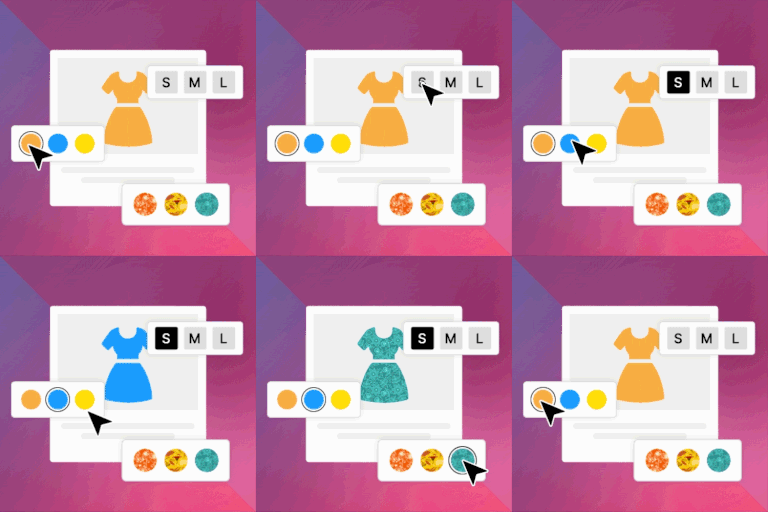
🔥 #1 Plugin for Adding Variation Swatches to WooCommerce Products The WooCommerce Product Variation Swatches plugin lets you configure & display product variations visually. This plugin improves product presentation, reduces customer confusion, and boosts conversions by providing a visually engagin
PricingFree downloadThe WordPress.org download is free. Pro versions, add-ons or external services may cost extra.
CompatibilityRequires WordPress 5.3 and PHP 7.4.
SourceWordPress plugins · Oct 21, 2026
01 / Source details
Aboutthistool.
🔥 #1 Plugin for Adding Variation Swatches to WooCommerce Products
The WooCommerce Product Variation Swatches plugin lets you configure & display product variations visually. This plugin improves product presentation, reduces customer confusion, and boosts conversions by providing a visually engaging and intuitive way to browse and choose product attributes, ensuring a smoother shopping journey across all devices.
Why do you need Variation Swatches in your Store?
Default WooCommerce variation dropdowns can be dull and unengaging, making it harder for customers to visualize product options. Variation Swatches solve this by replacing standard dropdowns with attractive color, image, and label/button swatches, allowing customers to quickly and easily select product variations like size, color, or material. This helps in improving user experience and boosting conversions.
✳️ Better Shopping Experience → Customers can visually select variations instead of guessing. ✳️ Faster Decision-Making → Eliminates confusion and speeds up the buying process. ✳️ More Professional Store Design → Gives your WooCommerce store a sleek, modern look. ✳️ Higher Conversion Rates → By making it easier for customers to find and select the products they want, swatches can contribute to higher conversion rates ✳️ Reduced Returns → Clear visual representation of product variations can help prevent customers from ordering the wrong item, leading to fewer returns. ✳️ Works Seamlessly with WooCommerce Themes → Compatible with almost all major themes and plugins.
🔥 EXPLORE WHAT OUR FREE VERSION OFFERS
Try Demo | Documentation | Get Pro
✅ SWATCH TYPES
The free version offers four essential swatch types, allowing you to display product variations seamlessly
1. Color 2. Image 3. Label/Button 4. Radio
Video tutorial
✅ AUTO CONVERT ALL VARIATION DROPDOWNS TO LABEL/BUTTON SWATCHES
The selected swatch dropdown variation will automatically be converted into label swatches
✅ CUSTOMIZATION OPTIONS FOR SWATCHES
This plugin offers a wide range of customization options allowing you to create common attribute styling like set icon height , width , shape & border color also other styling options like
HOVER/SELECTION STYLING: Add a fixed amount to the total price when the field is selected. Hover Style: You can adjust the border color upon hover
Selection style: You can change the border color, tick color and tick size of the selected swatch.
👉Note: Additionally you can customize the selection style for color and image swatches and button/label swatches separately.
Color & Image swatch styling: For color and image swatches you can customize the appearance of the selected swatch using two options Border on selection
Checkmark with border
Button/label swatch styling: Customize the appearance of the selected button and label swatches with three options Border on selection
Checkmark with border
Background with font color
TOOLTIP STYLING The term name of an attribute can be displayed as a tooltip, to which the following changes can be made Enable/Disable Tooltip
Set the text color for term name
Set the background color for term name
SWATCH TYPES SPECIFIC STYLING 1. Button/ Label swatches: You can customize the appearance of button and label swatches by adjusting the following parameters: Set Icon height & width
Set Icon font size
Set Icon background & text color
2. Color/ Image swatches:
Enable/ disable swatch drop-down style
🔥 Explore our Pro version for even more advanced swatch customization!
✅ OPTION TO SELECT ROUND AND SQUARE VARIATION SWATCH SHAPES
The Variation Swatches plugin lets you choose both round and square icons for your product variation swatches. So, based on your store theme, a suitable icon shape can be chosen.
✅ DISPLAY OPTIONS FOR UNAVAILABLE & OUT-OF-STOCK VARIANTS
WooCommerce notifies users about out-of-stock variants only after selection, which can be frustrating.
👉Note: This plugin lets you display Unavailable & Out-of-stock variants instantly with options like:
Unavailable Variants Hide – Remove the swatch.
Blur – Keep it visible but faded.
Blur with a Cross – Mark it with a strikethrough.
Out-of-stock Variants Blur – Keep it visible but faded.
Blur with cross – Mark it with a strikethrough.
✅ Enable Swatches in Additional Info
Once enabled, the swatches will automatically appear in the additional information, enhancing product presentation
✅ Clear on reselect
Once enabled, it allows a customer to easily clear a chosen variation by reselecting it.
👉Note: Styling of the clear button is available in the Pro version
✅ Enable Lazy Load for Swatches
Optimize performance by loading swatch images only when they come into view, ensuring faster page speed for variation-rich stores.
✅ Set AJAX Variation Threshold
The plugin allows you to set the Ajax variation threshold value. So, based on this threshold value, the product availability check can be done through Ajax method or JavaScript.
GET FULL ACCESS WITH PREMIUM NOW !
🔥 SEE OUR PREMIUM FEATURES
Want to give your store a more polished and seamless shopping experience? The pro version unlocks more flexibility, better styling options, and smarter ways to showcase your variations. It’s all about making product selection easier and more engaging for your customers.
Try Demo | Documentation | Get Pro
✅ ADDITIONAL SWATCH TYPE
In addition to Color, Image, Label/Button & Radio swatches available in the free version, the pro version introduces Image with Label providing a clearer and more informative way to display variations.
✅ CONVERT DEFAULT SWATCHES TO IMAGE SWATCHES
The Variation Swatches plugin lets you convert the product variation dropdown into image swatches in a single click.
✅ ADVANCED SWATCHES CUSTOMIZATION & STYLING
The Pro version provides advanced design flexibility , allowing you to create multiple unique styles for different attributes compared to the free version. 👉Note: This plugin offers a wide range of customization options allowing you to create common attribute styling like icon height, width, icon shapes other than round & square you can also customise the icon roundness, set border color & also set appearance for swatches, which we will explore!
HOVER/SELECTION STYLING: Along with the general styling options in the free version,the pro version allows you to set the selection Hover style in two additional ways Border Style:
Enlarge Style:
TOOLTIP STYLING: Apart from the general tooltip styling, the pro version offers more advanced styling such as: Image Tooltip: Set border color, height & width for image
Term Tooltip: Set text color, background color & font size
Description Tooltip: Set text color, background color, font size and enable/disable box-shadow
SWATCH TYPES SPECIFIC STYLING: The free version offers styling only for one swatch type Button/ Label swatches. However, the pro comes with an option for customising like 1. Radio swatch styling Set inner and outer color for the radio swatch upon hover.
Set both inner & outer color for the selected swatches.
2. Select swatch
Enable/ disable swatch drop-down style
ADDITIONAL DISPLAY STYLING: You can also set the display styling for
1. Featured Swatches styling: set height, width & font size of the featured icon 2. Additional info page swatches styling: set height & width of swatches icon in the additional info section 3. Shop page swatches styling: set height, width & font size for swatches on the shop page
ATTRIBUTE DESCRIPTION STYLING: Set font size & font color for attribute description
✅ FLEXIBLE SWATCH DISPLAY OPTIONS
Beyond the default style, swatches can be displayed in five unique ways, allowing for a more dynamic and user-friendly shopping experience.
Dropdown
Slider
Accordion
Horizontal Scroller
Vertical Scroller
✅ DISPLAY SWATCHES ON SHOP/ ARCHIVE PAGE
By displaying variation swatches on your WooCommerce Shop page/Archive page , your shoppers can quickly understand the variations that are available and that are not.
✅ MULTI-COLOR VARIATION SWATCHES (BICOLOR)
Showcase dual-colored products using bicolor swatches, where two colors appear inside a single icon. This feature is perfect for products with two-tone variations, making it easier for shoppers to visualize their options.
✅ ADDITIONAL DISPLAY OPTIONS FOR OUT-OF-STOCK VARIANTS
The Pro version offers two extra display options
Hide the variation and blur with cancel : to indicate out-of-stock variants
Styling options : to customize their appearance for a seamless shopping experience.
✅ SET STOCK LEFT ALERT
Alert shoppers when stock reaches a minimum level, creating urgency and encouraging faster purchases
👉Note: You can also display the stock left on the WooCommerce shop page , allowing shoppers to grab limited-stock products. Additionally, set a minimum value to trigger the stock left alert.
✅ GENERATE PRODUCT VARIATION LINK
The pro version lets you generate direct links for specific variations making purchases faster and more convenient for customers.
✅ QUICK SEARCH FOR SWATCH DESIGN & ATTRIBUTES
You can easily locate specific select swatch designs and attributes using the built-in search option , saving time and enhancing your experience.
✅ DISPLAY SWATCHES ON CART & CHECKOUT
Display the chosen image and color variations as a swatch on the cart and checkout page.
✅ CLEAR BUTTON STYLING
While the free version only has the option to clear on reset, the pro version of the variation swatch plugin helps in styling the clear button for your store themes
✅ SUPPORTED PLUGINS & THEMES
👉 PLUGINS
Yith WooCommerce Quick View
WooCommerce Product Bundle
WooCommerce Composite Products
WPC Smart Quick View for WooCommerce by WPClever
Elementor Page Builder Plugin
👉 THEMES
Store Front
Flatsome
Divi Builder
Astra
WoodMart
OceanWP
Porto
Enfold
Kedence
Motor
Hestia
Sydney
Neve
Spacious
Zakra etc..
Why ThemeHigh?
At themehigh, we specialize in providing thoughtful solutions to help you create your store in the easiest and simplest way possible, providing you with a smooth and enjoyable customization experience.
🏆 2 Million+ Customers 🏆 Quickest Turn-ar
See it in action
Screenshots & previews.
Color swatch previewImage swatch previewLabel swatch previewBehaviour for unavailable and out of stock variationTerm name tooltip previewSwatches Design typesAttribute stylingSwatch type stylingTooltip stylingHover and Border stylingGlobal settingsGlobal color variation attribute list previewGlobal image variation attribute list previewCheckmark with BorderSwatches on Additional InfoSwatches as Dropdown
02 / Source details
Gettingstarted.
Minimum Requirements
01WooCommerce 4.0 or greater
02WordPress 5.3 or greater
03PHP 7.0 or greater is recommended
04MySQL 5.6 or greater is recommended
Automatic installation
05Log in to your WordPress dashboard.
06Navigate to the Plugins menu, and click “Add New”.
07Search and locate ‘Product variation swatches for WooCommerce’ plugin.
08Click ‘Install Now’, and WordPress will take it from there.
Manual installation
Manual installation method requires downloading the ‘Product variation swatches for WooCommerce’ plugin and uploading it to your web server via your FTP application. The WordPress codex contains instructions on how to do this here .
03 / Source details
Frequentlyaskedquestions.
There’s a lot of help available on the main plugin website. See:
🔗 Plugin Features 🔗 Help Docs 🔗 ThemeHigh Support
How to set up Swatches settings in Product Variation Swatches for WooCommerce?
Navigate to Dashboard → Products → Swatches Options → Product Attributes . Click the Edit button next to an attribute and select the desired Swatch Type (Color, Image, or Label). After making your selection, click Save Changes to apply the Swatches settings.
What is the difference between Global and local attributes?
Global Attributes: Once defined, these attributes will be available to add for all the products. They will be listed in the attributes section of the product, from where you can choose them from the dropdown. Local Attributes: While global attributes are available to select for all products, local attributes are those that are custom-added to a particular product from the attributes section inside the product details.
What is a tooltip, and how does it work in WooCommerce Variation Swatches?
The tooltip is used to set the hover element for each term of an attribute/variation. To set the tooltip for swatches:
Navigate to Swatches Options → Swatches Designs → Tooltip Styling
Enable the checkbox → Enable tooltip.
Save the changes.
👉Note: In the free version, only the attribute term name is displayed as a tooltip. The premium version allows displaying images and descriptions in tooltips.
How to set a variation as default when the page loads?
You can achieve this by providing the default variation in the “ Default Form Values ” field inside the Products>>Edit product>> Variations .
How to display swatches on the custom pages?
Please add the below filter in your child theme’s functions.php
add_filter(‘thwvsf_enqueue_public_scripts', ‘enqueue_public_script’); function enque_public_script(){ if(is_page (Page Id) { return true; } } How to set up different styles for different swatches?
The plugin provides a feature: Class for modifying the styling properties of the fields.
Navigate to Dashboard → Products → Swatches Options
Select the Swatches Design tab
Choose any of the designs, and you can customize the attribute styling, hover and border styling, tooltip styling, and swatch-type-specific styling.
Note : The plugin’s free version only provides 4 swatches designs, whereas the Premium version lets you add as many as you like. Once you’ve done styling Swatches Design, go to Product Attributes
Select any attribute, and from the ‘Design Type’ dropdown menu, select the design you styled.
How to set up different selection styles/ checkmark styles for swatches?
Select a design from the Swatches Design tab . Click on the Hover and Border Styling option, and then under Selection Style , choose a swatch selection style you prefer. You can set the size and color of the tick if the chosen style is Checkmark with border
Can I set an image as a tooltip?
With the free version of WooCommerce Variation Swatches , you only have the option to set the term name as a tooltip . If you need Images as the tooltip, you have to Upgrade to Premium Version of WooCommerce Product Variation Swatches.
Is there an option to display the number of products left in the stock?
Upgrade to the Premium version to display the number of products left in stock. Stock left alert (min count) can also be set as per your preference when using WooCommerce Variation Swatches.
Website LLMs.txt and LLMs-Full.txt Generator is an LLMs.txt generator and llms-full.txt generator for WordPress. It helps site owners generate, manage, preview, validate, and serve AI discovery files from published public content. Use it to create structured /llms.txt and optional /llms-full.txt end
EngageDock AI is a customizable floating contact widget for WordPress websites that want more leads and faster visitor communication. It helps small businesses turn website traffic into calls, texts, emails, and callback requests from one clean contact panel. Key Features: Click-to-Call – One tap ca
Altify AI is an auto ALT text and AI ALT text plugin for WordPress images. It helps generate descriptive image ALT text for accessibility and image SEO. Use bulk image ALT text tools for your Media Library, generate featured image ALT text automatically, and scale WooCommerce image ALT updates with
The Accepted Payment Methods plugin is a straightforward, lightweight solution that enhances your website by displaying visually appealing icons of the payment methods you accept. This plugin is ideal for a variety of websites, including e-commerce platforms, service-oriented websites, and informati